DPF Monitor Mini
Technical specification
| Operating voltage | 6-19V (32V MAX) |
| Current draw in operation | ~40mA |
| Current draw in sleep mode | <8mA @ 12.5V 25°C |
| Operating temperature | -30°C to +85°C |
| Supported CAN standard | UDS |
| Display | AMOLED 460x280px |
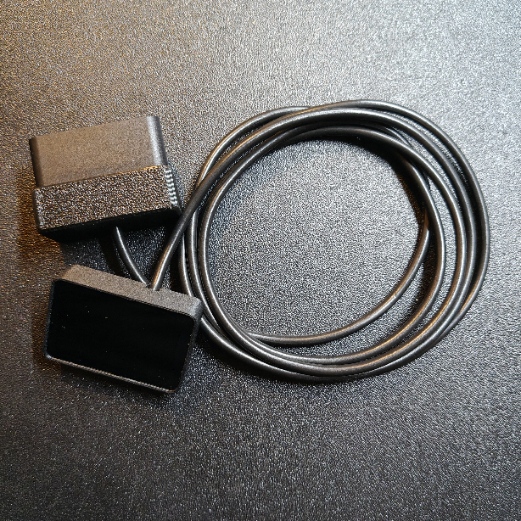
| Device dimensions | 43.5mm x 28.5mm x 11mm (W x H x D) |
| Housing material | ASA-CF (display), PETG-CF (OBD2 connector) |
| Cable length | 1.40m |
User manual
Always connect the device in the car for the first time with the engine running.
Touch gestures
The device is operated entirely with gestures on the touchscreen.
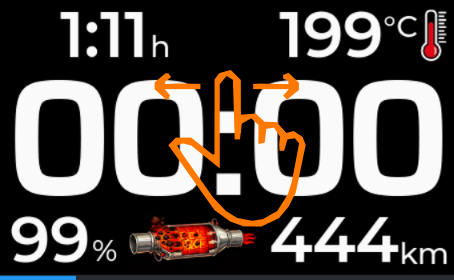
Swipe left / right
Changes the main screen page (7 pages).
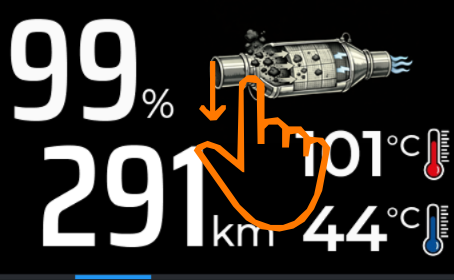
Swipe down
Opens the menu – works from any page.
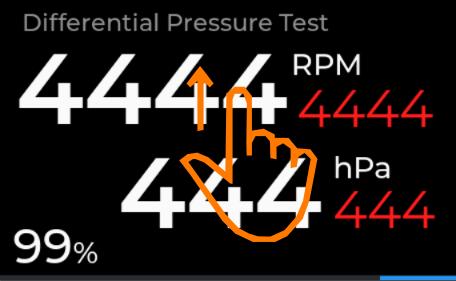
Swipe up
Page 6 – shows max / min values.
Page 7 – resets the maximum values.
Tap the screen
Switches between light (day) and dark mode.
Only works when Auto brightness is turned off.
Main screen pages
The main screen has 7 pages – choose the one that suits you best.
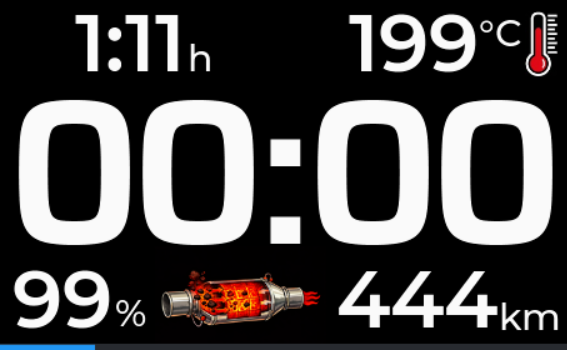
1 Overview with clock
- CenterClock
- Top leftTime since engine start
- Top rightCurrent oil temperature
- Bottom leftDPF load in %, based on the calculated soot mass
- Bottom rightDistance since last regeneration
- BottomDPF status icon
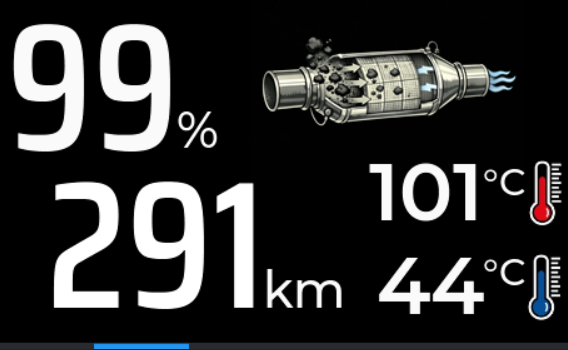
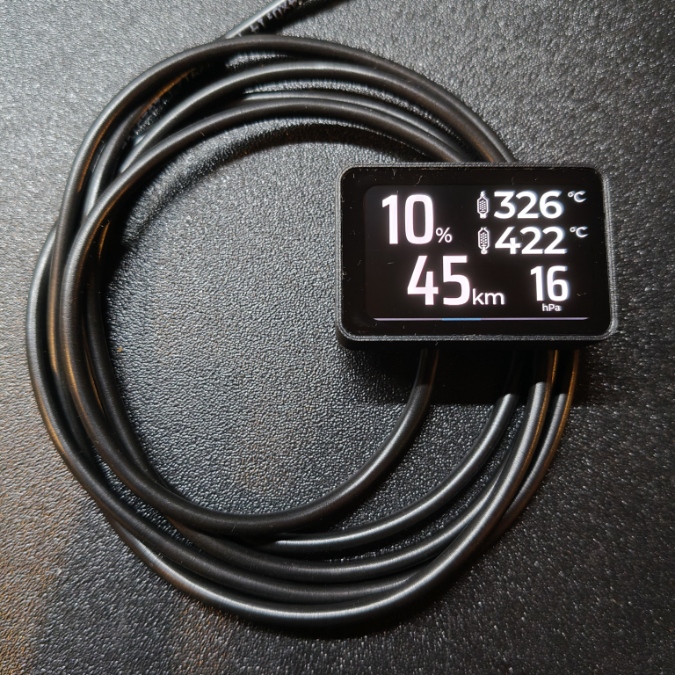
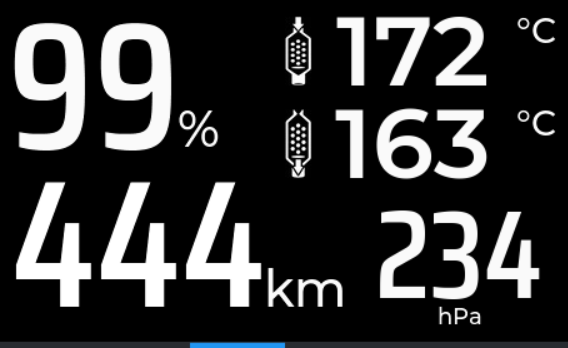
2 DPF and fluid temperatures
- Left sideDPF load and distance since last regeneration
- Right – topDPF status icon
- Right – bottomOil temperature red icon and coolant temperature blue icon
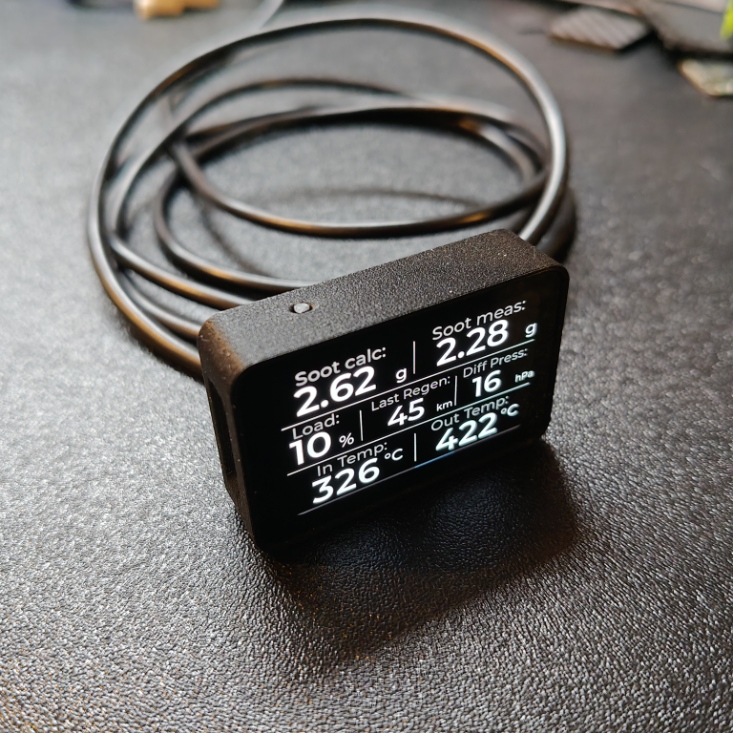
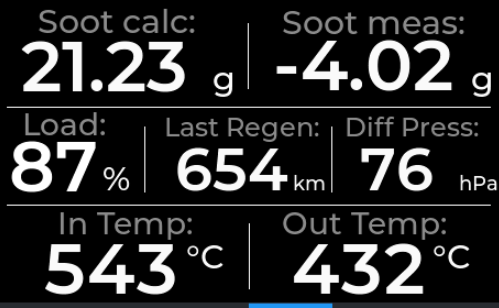
3 Soot mass
- Left sideDPF load and distance since last regeneration
- Right – topCalculated and measured soot mass
- Above calculatedSoot accumulation rate in mg/km how many mg of calculated soot is added per kilometre driven
- Right – bottomDifferential pressure
4 Filter temperatures
- Left sideDPF load and distance since last regeneration
- Right – topTemperature before and after the DPF
- Right – bottomDifferential pressure
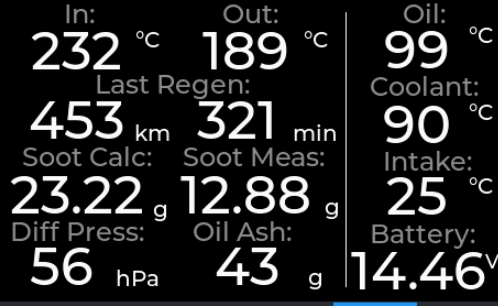
5 Key DPF parameters
All parameters are labelled directly on the device screen.
With Switch page to regen enabled, the device switches to this page automatically for the duration of a regeneration.
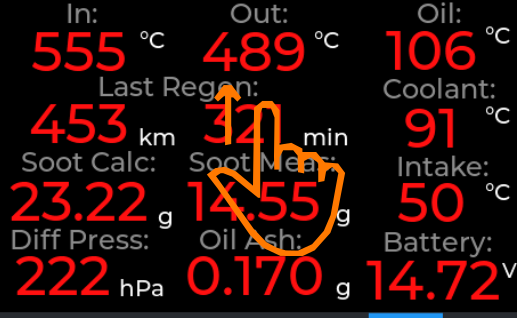
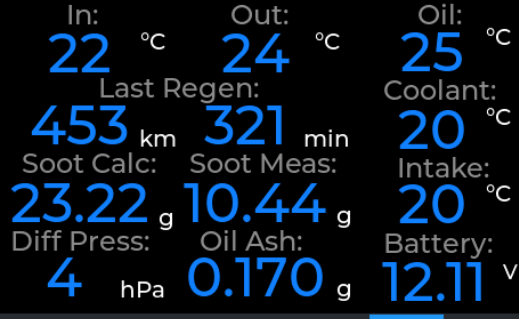
6 Parameters with max / min view
All parameters are labelled directly on the device screen. The device records a maximum and a minimum value for each of them – you switch between them by swiping up.
- 1st swipeMaximum values
- 2nd swipeMinimum values
- 3rd swipeBack to live values
Maximum and minimum value view
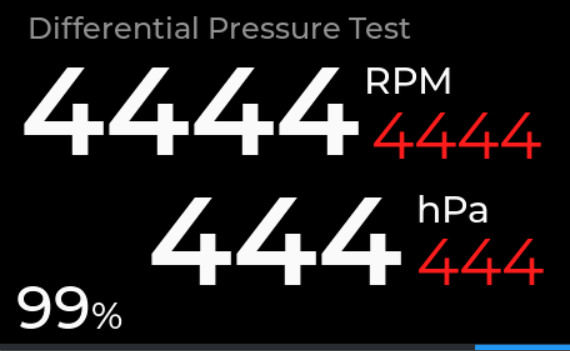
7 Differential Pressure Test
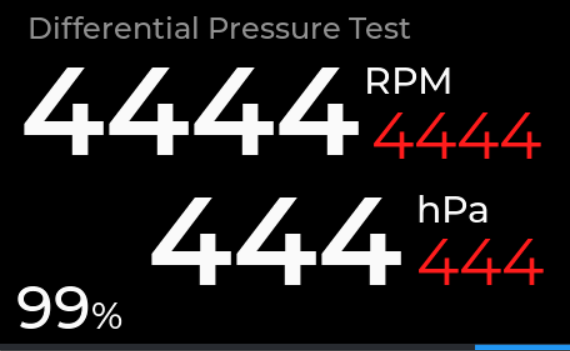
- Main areaDifferential pressure reading
- In redMaximum values
- Bottom leftCurrent DPF load in %
Swipe up to reset the maximum values. The Clear max after regen option does this automatically after every regeneration.
Menu navigation
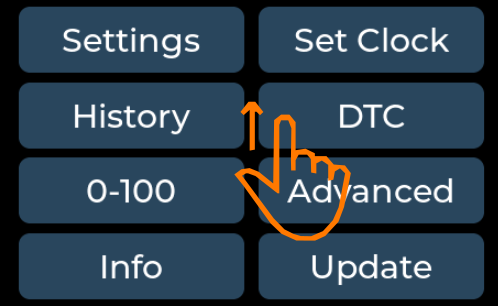
Menu – 6 submenus
- EnterSwipe down – from any main screen page
- Exit the menuSwipe up
- Exit a submenuSwipe left to right – always works, in every submenu
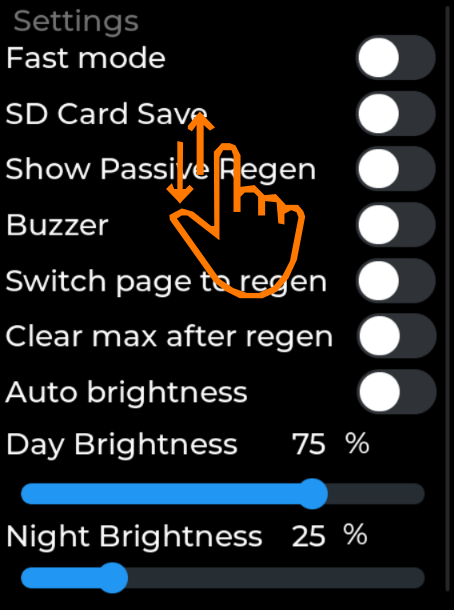
Settings
The options are grouped by topic – each one is described below.
Performance and data logging
Enables fast mode – the CAN bus is polled at a higher rate.
Logs data to the SD card once per second. All parameters read on the main page are recorded.
Information display
After the engine is switched off, the device shows the trip statistics for 10 seconds before going to sleep.
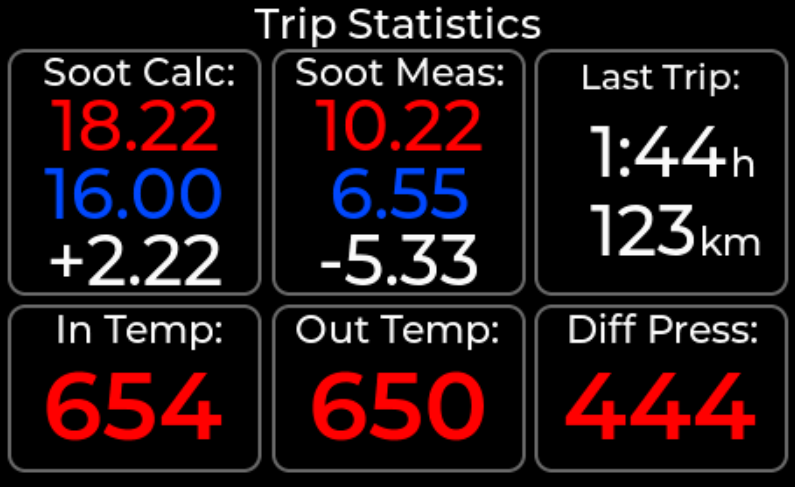
How to read the statistics
- Red shows the maximum recorded values.
- Blue shows the minimum recorded values.
- For the calculated and measured soot mass, white shows the difference since engine start. For example, a value of +1.21 means the soot mass increased by 1.21 grams between starting the engine and the end of the trip. A value of -0.50 means the soot mass decreased by 0.50 grams.
Signals passive regeneration on the main screen – the temperatures or the DPF icon turn orange. Detected from a drop in the measured soot mass.
During a DPF regeneration the screen switches automatically to page 5 – the one with the key DPF parameters.
After a regeneration finishes, the maximum values on page 7 (Differential Pressure Test) are reset automatically.
Audible signals
Audible signal when a DPF regeneration starts and finishes.
Signal volume: HIGH – loud, LOW – quiet.
Screen brightness
Switches between day and night mode automatically. With this option off, you switch modes manually by tapping the screen.
Screen brightness level in day mode.
Screen brightness level in night mode.
Setting the clock
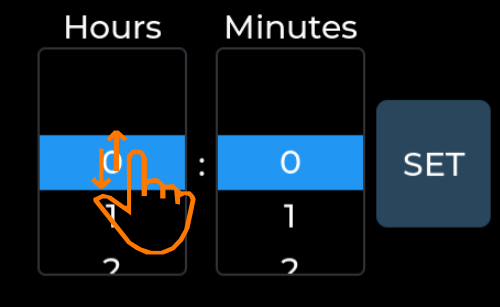
- Swipe up or down over the hours field to change the value.
- Repeat the same over the minutes field.
- Press the SET button to save.
DTC – fault codes
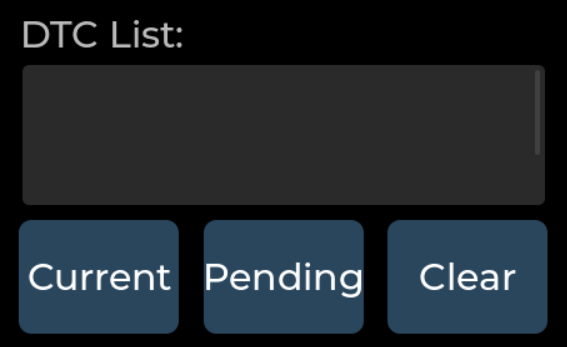
Fault codes are read automatically when you open the DTC page.
Reads the DTCs (Diagnostic Trouble Codes) stored in the ECU memory. Use it to refresh the list manually.
Clears all DTCs stored in the ECU memory.
Regeneration history
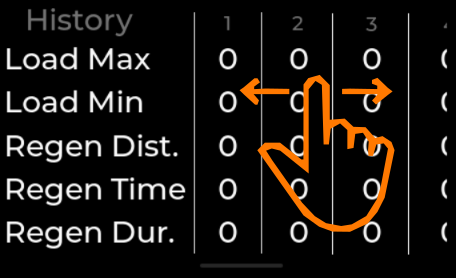
- CapacityThe last 10 DPF regenerations once full, the oldest entry is overwritten
- OrderThe first record is always the most recent regeneration, the following ones are older
- BrowsingSwipe left or right on the right-hand side of the screen
- ClearingPress and hold the History button for 2 seconds
0-100 km/h acceleration test
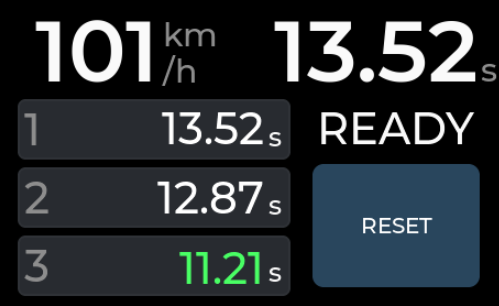
- Top rightCurrent measurement result
- BelowThe last three results – the best one is marked green
- Reset resultsPress and hold RESET to clear the last three results
On-screen statuses
- READYReady to start a measurement
- STOPWaiting for the car to come to a stop
- RESETWaiting for the reset button to be pressed to start a new measurement
Engine data readout (Advanced)
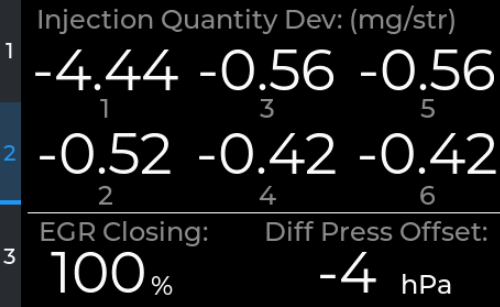
Reading the parameters
Available data: boost pressure, fuel rail pressure, MAF, injector corrections and exhaust gas temperatures.
- EnterThe Advanced button in the menu
- Page changeSwipe up or down
- ExitSwipe left to right
Graph view
Available graphs: boost pressure, fuel pressure and MAF – actual and specified values.
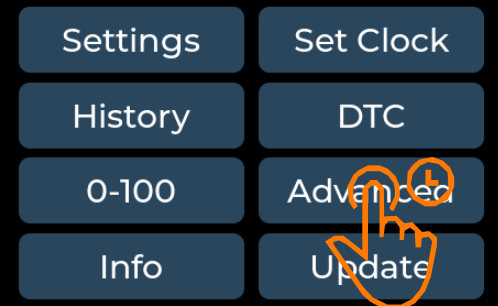
- Press and hold the Advanced button for 2 seconds.
- Select the graph you want to view.
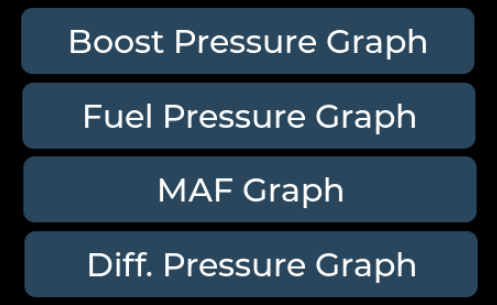
List of available graphs.